Change Password
Quant0 allows users to securely update their account password from the Password & Authentication page.
The Change Password form requires the user's current password, a new password, and confirmation of the new password.
Navigate to Change Password
To change your password:
My Account → Password & Authentication → Change Password
- Open My Account from the left navigation menu.
- Select Password & Authentication.
- In the Password section, click Change Password.
- The Change Password dialog opens.
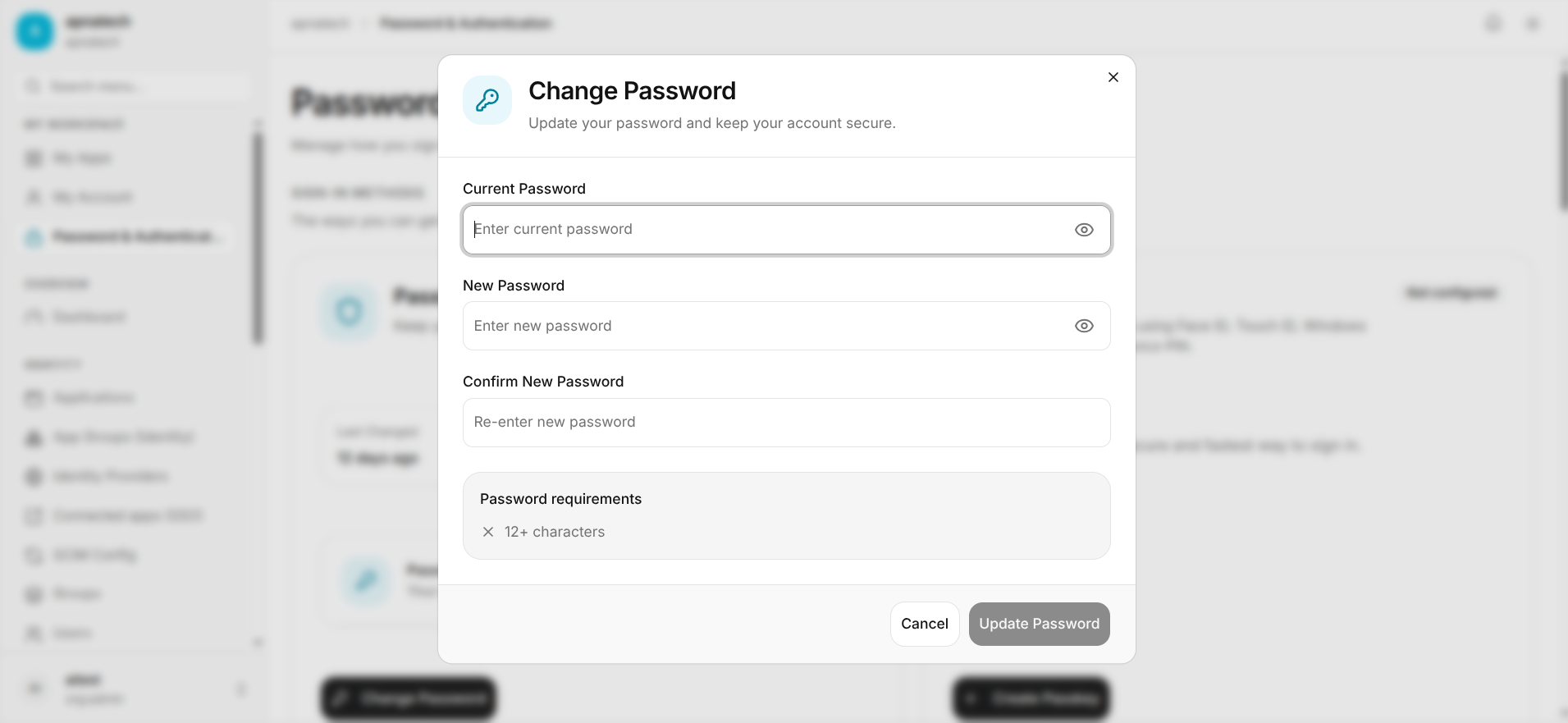
Change Password Form
The Change Password dialog contains the following fields:
Current Password (Required)
Enter your existing account password.
Placeholder: Enter current password
The password field includes an eye icon that allows you to show or hide the entered password.
New Password (Required)
Enter the new password you want to use for your account.
Placeholder: Enter new password
The password field includes an eye icon that allows you to show or hide the entered password.
Password Requirements
The new password must contain:
- 12 or more characters
The password requirements are displayed directly below the password fields.
Confirm New Password (Required)
Re-enter the new password to confirm that it was entered correctly.
Placeholder: Re-enter new password
The confirmation password must match the New Password exactly.
Updating Your Password
After entering all required information:
- Enter your Current Password.
- Enter your New Password.
- Re-enter the password in Confirm New Password.
- Verify that the password meets the 12+ characters requirement.
- Click Update Password.
If the information is valid, Quant0 updates the password associated with your account.
Form Actions
The Change Password dialog provides two actions:
| Action | Description |
|---|---|
| Cancel | Closes the Change Password dialog without updating the password. |
| Update Password | Validates the entered information and updates the account password. |
The Update Password button remains unavailable until the required information is entered correctly.
Password Validation
The following conditions must be satisfied before the password can be updated:
| Validation | Requirement |
|---|---|
| Current Password | Must be provided. |
| New Password | Must be provided. |
| Password Length | Must contain at least 12 characters. |
| Confirm New Password | Must match the new password. |
Security
Choose a strong and unique password that is not reused across other services.
Do not share your password with other users.
Related Documentation
- Password & Authentication - Manage password and authentication settings.
- Passkeys - Configure passwordless authentication.
- Trusted Devices - Learn how Keep me signed in works.
- Session Management - Manage active account sessions.
- Sign In to Quant0 - Learn how to sign in to Quant0.